A practical guide comparing cloud-managed security cameras to traditional NVR/DVR systems. Learn why businesses are migrating to cloud and when on-premise still makes sense.

Choosing the best computer repair near me takes more than picking the closest listing. Compare expertise, communication, pricing, data practices, and the technician’s fit for the problem.
A nearby repair provider should be convenient, but convenience is only one part of a sound decision. You also need a clear explanation of what the technician can assess, what the service includes, and how the work will be managed. For a household computer, that may mean a straightforward local repair. For an organization, the right answer may involve a broader IT or network assessment rather than a one-off fix.

Start by considering how the computer can realistically be serviced. An in-store visit may suit a laptop with a damaged port, while mobile service can be more practical for a desktop connected to multiple peripherals. Remote support may help with software settings, but it is not appropriate for every hardware or security problem.
Ask whether appointments are required, whether drop-offs are secure, and how the provider handles devices that cannot be transported easily. Organizations with several sites should also ask whether support can extend beyond one local address. Harris Technology Services (HTS) works with single-site and multi-site organizations through managed technology and infrastructure solutions, so a business should distinguish a simple repair visit from a wider operational requirement.
Before booking, name the exact device and operating system rather than saying only that it is a computer. Include the manufacturer, model, approximate age, and whether it is a desktop, laptop, workstation, or server. Compatibility matters because a technician who routinely handles Windows laptops may not have the same experience with Macs, specialized workstations, or network-connected business systems.
Ask whether the provider supports your operating system version and whether replacement parts are available. If the issue affects several machines, describe the pattern across the group; recurring failures may point to a network, update, account, or configuration problem instead of isolated hardware trouble.
A useful first conversation separates the symptom from the suspected cause. “The computer is slow” could involve storage, memory, malware, startup programs, a failing drive, or a network connection. A provider should explain what will be tested before recommending a repair, upgrade, reinstallation, or replacement.
For an organization, the question may be larger than one device. HTS provides physical security, IT, network infrastructure, and managed technology solutions, with cloud-managed or on-premise systems supported end to end. That type of integrated scope is relevant when a computer problem touches access, connectivity, data protection, or multiple locations, but it should not be assumed of every neighborhood repair shop.
Certifications can be useful evidence, but they are not a substitute for relevant experience. Look for technicians who can explain similar repairs in plain language and who are willing to document the diagnosis. Local reputation matters too, especially when you need a provider to handle sensitive files or return a device on a predictable schedule.
When comparing providers, check four practical signals rather than collecting impressive-sounding labels:
These details help separate a technically capable provider from one that simply advertises a long list of services. For a larger organization, HTS approaches technology through assessment, integration, scalability, and predictable management rather than treating every need as an isolated repair.
Reviews can reveal how a provider behaves when a repair is routine, delayed, or more complicated than expected. They are most useful when read as evidence of a process: how clearly the technician communicated, whether the estimate changed, and whether the device worked after pickup. A local recommendation is helpful, but it still deserves a little verification.
Read several recent reviews across more than one platform. Look for repeated observations about punctuality, diagnosis, communication, workmanship, and whether the final price matched the initial explanation. One complaint may be an outlier, while the same concern appearing across many reviews deserves attention.
Pay particular attention to reviews that describe the same kind of service you need. Feedback about phone screen repairs may tell you little about data recovery, business networking, or a failing desktop motherboard. The closer the example is to your problem, the more useful the pattern becomes.
A credible review usually includes specific details without sounding like a sales script. It may mention the type of device, the original symptom, the communication process, and the result. Be cautious when many reviews use nearly identical language, make broad promises, or provide praise without describing any actual interaction.
You can also check dates and distribution. A large cluster posted in a short period is worth investigating, as is a profile with no other local activity. Reviews should inform your questions, not replace a direct conversation about your particular repair.
A provider’s response to criticism can be more revealing than the criticism itself. Look for calm, specific replies that acknowledge the concern and invite a private discussion without disclosing customer information. Defensive, dismissive, or copy-and-paste responses may signal weak follow-through.
Ask whether the provider has a defined process for incomplete repairs, repeat failures, lost data, or disputes about a bill. A professional answer does not guarantee a perfect outcome, but it shows that problems are handled through a process rather than improvised after the fact.
Recommendations from a colleague, neighborhood group, or nearby business can narrow the field quickly. Ask what was repaired, how long it took, what the person paid, and whether the provider explained the work clearly. A recommendation for a simple home laptop issue may not translate to a multi-device business environment.
For broader local context, you can review descriptions of local repair service practices, but treat any directory or linked business information as a starting point. Your final choice should still depend on a current estimate, direct answers, and a technician who understands the actual problem.
Price comparisons are meaningful only when the services being compared are equivalent. One provider may quote diagnosis alone, while another includes labor, testing, and a limited warranty. Before comparing numbers, ask each shop to describe the work covered and the conditions that could change the estimate.
Diagnostic pricing varies with the device, the symptom, and how much testing is required. Some providers charge a separate assessment fee; others apply it toward approved work. Labor may be billed by time, by task, or as part of a package, and specialized data recovery or board-level work may follow a different model.
Do not treat the lowest initial number as the lowest total cost. A quick diagnosis that leads to several add-on charges can exceed a more transparent quote. Ask what happens if the technician cannot reproduce the issue or discovers a second fault.
Flat-rate pricing can make a common repair easier to budget because the scope is defined in advance. Hourly billing may be fairer when the cause is uncertain or the work involves troubleshooting across several systems. Neither model is automatically better; clarity about the included tasks matters more than the label.
Use a simple comparison before authorizing work:
| Pricing detail | What to confirm | Why it matters |
|---|---|---|
| Diagnostic fee | Whether it is separate or credited | Prevents confusion before testing begins |
| Labor basis | Flat rate, hourly rate, or package | Shows how time affects the total |
| Parts | Brand, condition, and availability | Helps assess quality and delay risk |
| Warranty | Coverage period and exclusions | Clarifies support if the repair fails |
Once these items are written down, quotes become easier to compare. A clear scope protects both sides because you know what you are approving and the technician knows what outcome is expected.
Ask whether parts are new, refurbished, or sourced after approval. Confirm whether the quoted price includes installation, data transfer, operating system setup, shipping, disposal, and tax. If a part is backordered, find out whether the device remains at the shop and whether the estimate can change.
Warranty terms should be specific. Ask whether the warranty covers the part, the labor, or only the original symptom, and whether opening the device elsewhere would affect coverage. These questions may feel detailed, but they are easier to answer before work begins than after a disagreement.
A second opinion is sensible when the repair is expensive, the diagnosis is uncertain, the data is valuable, or the recommendation is replacement without a clear explanation. It can also help when two providers describe the failure differently. Give the second technician the original symptoms, but avoid leading them with the first diagnosis.
The goal is not to collect the cheapest quote. It is to understand the likely cause, the proposed fix, the risk of recurrence, and the expected remaining life of the device. That information supports a better decision than price alone.
The best computer repair near me is not necessarily the shop with the broadest advertisement. It is the provider whose experience matches the problem and whose process fits the stakes. A slow home laptop, a liquid-damaged workstation, a malware incident, and a failed business network each call for different questions and precautions.
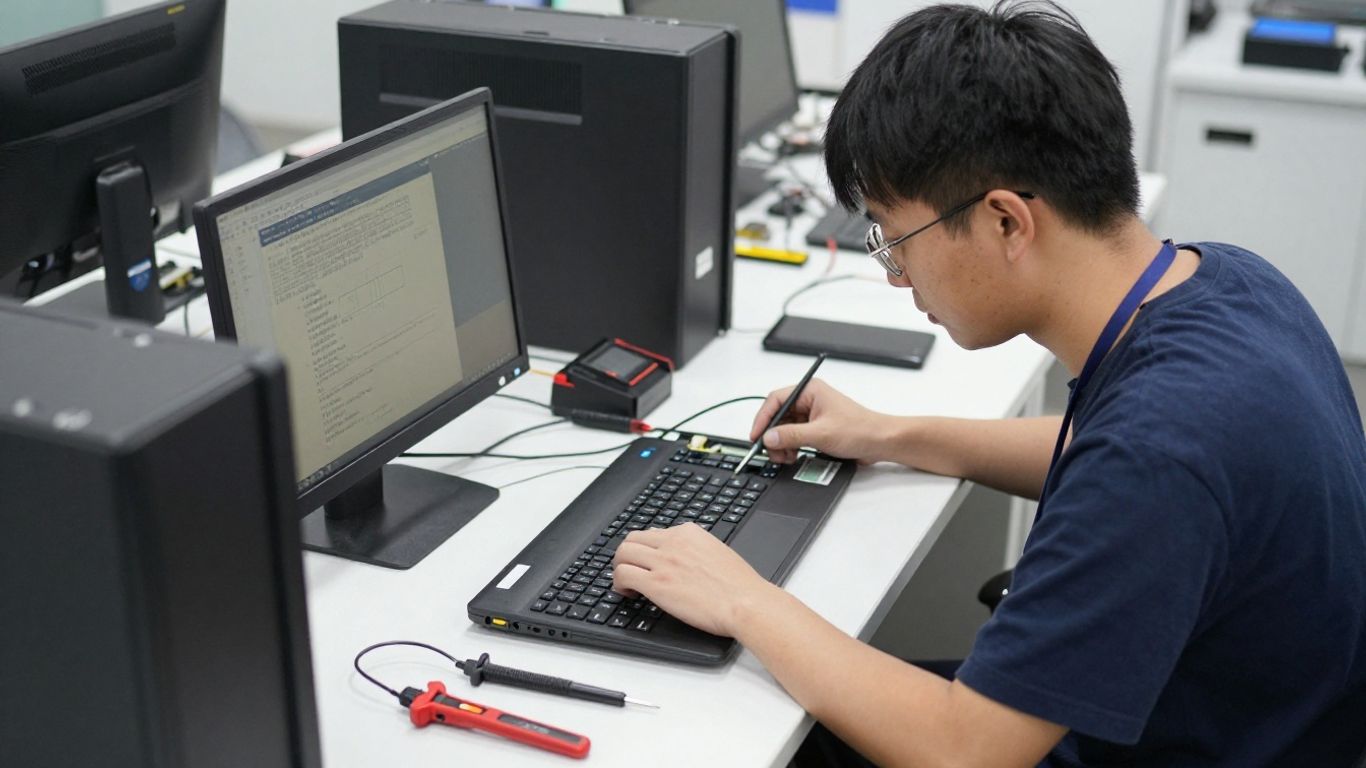
Slow performance should be diagnosed rather than guessed at. Ask the technician to check storage health, available memory, startup applications, system updates, overheating, and signs of unwanted software. If the slowdown occurs only online, the computer itself may not be the source; the router, wireless signal, account, or service connection may also need review.
Record when the problem began and whether it affects particular applications. A provider who can reproduce the slowdown and show test results is more useful than one who immediately recommends an upgrade. An upgrade may be sensible, but it should follow an explanation of the limiting component.
Physical damage needs a practical assessment of both the visible part and the underlying device. A cracked screen may be straightforward, while a damaged charging port can involve the board, battery, cable, or power adapter. Ask whether the technician tests the computer before and after replacing the component.
For liquid damage, power the device down and avoid repeated attempts to start it. Tell the provider what happened, when it happened, and whether the computer was connected to power. Those details affect the risk assessment and may change whether repair or data recovery should come first.
Malware work should include more than deleting a suspicious file. Ask how the technician will inspect the system, protect personal or business data, reset affected credentials, and verify that the device is safe to return to normal use. If several devices show unusual behavior, treat the event as a possible broader security incident rather than a single-computer cleanup.
Do not give unnecessary passwords or unrestricted access. A technician should explain what access is required and how it will be removed afterward. For organizations, security concerns may also call for a wider IT and network review instead of a narrowly scoped repair.
A useful educational video can help you recognize symptoms, but it cannot replace a hands-on diagnosis when hardware failure, data loss, or active compromise is possible. Use general troubleshooting advice cautiously, especially if continued use could overwrite recoverable data.
Data recovery should be handled with care because repeated restarts, software installation, or drive repairs can make recovery harder. Tell the technician which files matter most and whether you have another copy. Ask whether the recovery process is read-only where possible and whether the shop will contact you before attempting a more invasive procedure.
Startup failures also vary widely. The cause could be a damaged drive, corrupted system files, an update, a power issue, or a component that prevents normal booting. A good provider explains the difference between making the computer start again and preserving the files on it.
A short call before booking can prevent avoidable delays. Describe the symptom, the device, the urgency, and any steps you have already tried. Then ask how the provider will evaluate the issue and what approval is required before billable work begins.
Ask when the technician can inspect the device, when a diagnosis is likely, and how long common repairs usually take after parts arrive. A same-day promise may apply only to certain repairs or devices, so clarify the conditions. If the computer supports payroll, point-of-sale work, or a deadline, say so before the appointment.
For multi-site organizations, ask whether the provider can coordinate visits and communication across locations. A technically good repair can still be disruptive if scheduling is inconsistent or no one owns the overall status update.
Ask who can access the device, whether files are copied during diagnosis, and how customer information is handled after service. You should understand whether the technician needs your account password, a temporary account, or no login at all. If access to encrypted files is necessary, discuss the process privately rather than writing sensitive credentials on a visible note.
Business customers should ask about administrative access, shared folders, regulated information, and separation between devices. The right level of access should be limited to what the work requires.
Find out whether the provider will back up data before reinstalling an operating system, replacing a drive, or attempting a risky repair. A backup is not always possible when a drive has failed, so ask what can be preserved and what approval is needed before proceeding.
You should also maintain your own backup when possible. A technician’s copy may be temporary, incomplete, or retained only for the duration of the service. Confirm how the backup is stored, whether it is encrypted, and when it will be deleted.
Ask what support is available after pickup and how to report a recurring problem. Clarify whether the warranty covers the replacement part, the labor, related symptoms, or only the exact repair performed. Keep the invoice, diagnostic notes, and any replaced-part information with your device records.
For business systems, post-repair support should include a clear contact path and escalation process. If the issue could return across several machines, discuss monitoring or managed support rather than waiting for repeated breakdowns.
Preparation makes diagnosis faster and reduces the chance of misunderstandings. It also gives you a chance to protect data before the device leaves your control. Even a few minutes of documentation can help a technician reproduce an intermittent problem.
Write down what happens, when it started, and whether the problem is constant or occasional. Include error messages, unusual sounds, overheating, dropped connections, recent updates, newly installed applications, spills, falls, or power events. A photo or short video of an intermittent screen or startup message can be useful.
Avoid vague descriptions such as “it stopped working” when you can be more precise. Explain what happens after pressing the power button, whether lights or fans activate, and whether the problem changes when accessories are disconnected.
Bring the model number, serial number if available, purchase information, warranty details, and any previous repair notes. Gather the account information the technician may legitimately need, but do not hand over more access than necessary. Ask whether a temporary service account can be used.
Receipts and device details can also help determine whether a manufacturer warranty or service agreement applies. If the computer belongs to an organization, confirm who is authorized to approve costs and collect the device.
Back up documents, photos, browser data, and other essential files before service whenever the computer is stable enough to do so. Verify that the backup opens from another device or location; a backup that has never been tested is only an assumption. For a failing drive, stop using the device and ask about recovery before attempting a large copy.
Keep at least one backup separate from the computer. This protects against device failure, accidental deletion, and some security incidents. Do not rely solely on a repair shop’s temporary working copy.
Sign out of personal accounts where practical, remove saved payment information, and disconnect unnecessary cloud services. If the technician needs an account to test the device, use a temporary account with limited permissions. Record any settings you remove so they can be restored later.
Do not erase the device before confirming that important files are backed up and that the technician does not need the current system state for diagnosis. Preparation should reduce exposure without destroying useful evidence.
The final choice should reflect the problem, the value of the data, the urgency, and the expected life of the computer. A nearby shop may be ideal for a routine component replacement, while an organization with interconnected systems may need one accountable technology partner. Compare the full service experience, not just the advertised starting price.
Convenience matters when you need a quick drop-off, but trust matters more when the device contains personal, financial, or business information. Balance travel time against the technician’s experience, communication, privacy practices, warranty, and ability to explain the estimate. A slightly higher price can be reasonable when it buys a clearer process and lower risk.
For organizations, HTS offers an integrated approach spanning physical security, IT, network infrastructure, and managed technology. That is relevant when the need extends beyond one computer, though a decision-maker should still request an assessment tailored to the organization’s size, locations, and operating requirements.
Repair may not make sense when the device is near the end of its useful life, several major components are failing, or the cost approaches that of a suitable replacement. Consider compatibility, security updates, battery condition, performance, warranty coverage, and the cost of moving data and applications.
A replacement is not automatically the better answer. An upgrade, clean installation, or targeted component repair may restore useful life at a lower total cost. Ask the technician to explain both options and the trade-offs rather than accepting a recommendation without context.
Review the estimate for the diagnosis, proposed work, parts, labor, taxes, turnaround, warranty, and conditions that require additional approval. Compare it with the device’s current value and with a realistic replacement cost. If the estimate is vague, ask for a written revision before authorizing anything.
The strongest estimate makes uncertainty visible. It distinguishes confirmed findings from possible secondary issues and explains what happens if the repair does not solve the original symptom. That clarity is often more valuable than a small difference in price.
Before signing off, repeat the agreed scope in your own words: what will be tested, what will be repaired, what data will be preserved, how much you authorize, and when you will receive an update. Confirm who can approve additional work and how the provider will contact you.
Keep a copy of the estimate and note the device’s condition at drop-off. Once the repair is complete, test the original functions before leaving, collect any replaced parts or recovery media that were promised, and ask what follow-up steps remain.
Finding the best computer repair near me is a process of matching the technician, service model, price, and privacy practices to the actual problem. A careful diagnosis, written scope, protected data, and realistic repair-versus-replace comparison will usually lead to a better result than choosing the nearest listing alone.
Start with providers that handle your device and problem type, then compare recent reviews, diagnostic practices, pricing, data protection, turnaround time, and warranty terms. A short call can reveal whether the shop is a good fit.
Choose based on the equipment and the problem. Local drop-off works well for many hardware repairs, while mobile service can help with desktop setups and connected equipment. Remote support is best reserved for issues that can be safely diagnosed through software access.
Costs vary by diagnosis, labor model, parts, device, and complexity. Ask whether diagnostics are separate, whether labor is hourly or flat-rate, and what additional charges could apply before approving work.
Only provide access that is necessary, and ask whether a temporary or limited account can be used. Discuss how credentials and personal files will be protected, and change passwords afterward if full access was required.
Yes, whenever the computer is stable enough to back up safely. Verify that the backup works, and ask about data recovery first if the drive is failing or the device contains irreplaceable files.
Replacement may be sensible when the device is old, unsupported, repeatedly failing, or nearly as expensive to repair as a suitable replacement. Compare total cost, security updates, performance, compatibility, and data migration effort.
A useful estimate identifies the diagnosis, proposed work, parts, labor, taxes, expected timing, warranty, and approval limits. It should also explain what happens if the technician finds another issue or the proposed repair does not resolve the symptom.
Connect with us to explore our scalable solutions tailored to your unique needs and receive a personalized free quote.