A practical guide comparing cloud-managed security cameras to traditional NVR/DVR systems. Learn why businesses are migrating to cloud and when on-premise still makes sense.

Finding a reliable support route starts with official sources and clear information about the problem. A little preparation can make a phone call, chat, or support request much more productive.
The right Brivo support number may depend on your region, account arrangement, and whether you are an administrator or an end user. Start with information published by the provider rather than a directory, forum, or old email thread. The goal is to reach a current support route that can identify your organization and system.
Begin with the Brivo contact page, where sales, general inquiries, and technical support routes are presented together. The page also provides a contact form and regional information, so it can be more useful than searching for an isolated phone number. Check that the page is current and that the option you select matches an existing system-support question rather than a sales inquiry.
If you need a general resource before contacting anyone, the Brivo Help & Support center may point you toward answers and support materials. Save the official page in your organization’s internal documentation once you have confirmed that it applies to your account.
An account or customer portal may provide organization-specific support instructions, case history, or administrator resources. Those details can be more relevant than a general number because they connect the request with the system and service arrangement already in place. If you cannot sign in, ask an authorized administrator to verify the route through a separate, trusted channel.
Avoid copying sensitive credentials into a form simply because it asks for account context. Usually, the organization name, user email, location, and a description of the issue are enough to begin verification.
Many organizations centralize access-control support through a facilities, security, IT, or property-management team. That team may already have a service agreement, escalation path, or installer contact that individual users are not expected to use directly. Ask who owns the system before opening a second, disconnected request.
For multi-site organizations, confirm the affected location and the person responsible for it. A short internal check can prevent duplicate tickets and help support staff understand whether the issue is isolated or broader.
Search results and old documents can contain numbers that are outdated, incomplete, or unrelated to technical support. Treat an unexpected call offering urgent assistance with caution, especially if the caller asks for a password or remote access before explaining the case. When in doubt, navigate to the official site independently instead of using a link or number supplied in an unsolicited message.
A phone call is not always the fastest or safest first step. The best channel depends on urgency, the number of people affected, and whether the requester has administrative authority. A short, well-described request gives support a better starting point than a rushed call with no account context.

Calling makes sense when access is time-sensitive, multiple users are affected, or written instructions have not resolved the problem. Have the location, account details, and exact symptoms ready before dialing. If the issue concerns a building entrance or business operation, also identify a safe temporary procedure for people who need access.
Use the phone route shown on an official contact page, not a number copied from an unverified listing. The Contact Support page can be a useful starting point when you need the provider’s current support route.
A help center is often suitable for a single-user question, a familiar setup task, or an issue that can be investigated without immediate live assistance. It lets you review guidance at your own pace and may help you identify whether the problem is related to credentials, a device, or account access.
Read the full article or procedure before repeating a step. If the page fails to load, record that behavior and try the official refresh or alternate contact route rather than repeatedly entering credentials into an unfamiliar page.
Administrators should describe the affected organization, site, users, and time window in one clear request. Explain what changed, what still works, and whether the issue affects one credential or a wider group. This gives the support team a usable scope without requiring several rounds of basic clarification.
A simple request structure helps keep the record useful:
After submitting, keep the confirmation and note any promised response time. If the request is urgent, use the appropriate live channel as well, while referring to the existing case rather than opening unrelated duplicates.
End users may not have permission to change credentials, issue mobile passes, or alter door settings. In those situations, the property manager, security administrator, or internal IT team is the right first contact. They can determine whether the issue is personal, local to a door, or part of a wider system problem.
Give that person the same concise facts you would give support. Do not attempt repeated workarounds that could create a second access problem or conflict with organizational policy.
Support conversations move more efficiently when the first message contains evidence rather than guesses. Preparation does not need to be elaborate; a short timeline and a few precise facts are usually enough. It also helps your organization keep a consistent record when several people or sites are involved.
Write down the organization name, affected site, your role, and the email address associated with the account. If the issue involves a shared facility, include the building or door identifier used internally. Do not include a password or full security code in ordinary support notes.
Authorized administrators should also note whether the problem affects one person, a group, or every user at the location. That distinction can change the urgency and the likely troubleshooting path.
Copy the message exactly, including punctuation and any reference number. A photograph or screenshot can help when the text disappears, but redact unrelated personal information before sharing it. Avoid paraphrasing a technical error if the original wording is available.
The difference between a failed sign-in, an unavailable credential, and a loading problem may determine which team should receive the request. Precise wording reduces avoidable back-and-forth.
Record whether the problem appeared on a phone, computer, browser, or access device. Include the operating system or browser version when it is easy to find, along with whether another approved device behaves differently. These details help separate an account issue from a local device condition.
Keep the description factual. Saying that a pass does not appear on one phone is more useful than assuming the account itself is disabled.
Create a brief timeline: when access last worked, when the failure began, and whether anything changed beforehand. Note steps such as restarting the app, checking connectivity, or attempting an approved password reset. A concise timeline saves time because it gives the next person a clear starting point.
Do not repeatedly retry a step that could lock an account or create duplicate requests. Share what happened after each attempt, including whether the behavior changed.
Access failures can look similar even when their causes differ. A mobile credential problem, a sign-in problem, and a door-side problem may need different owners. Start with safe checks, then provide the resulting evidence to the person or team responsible for the system.
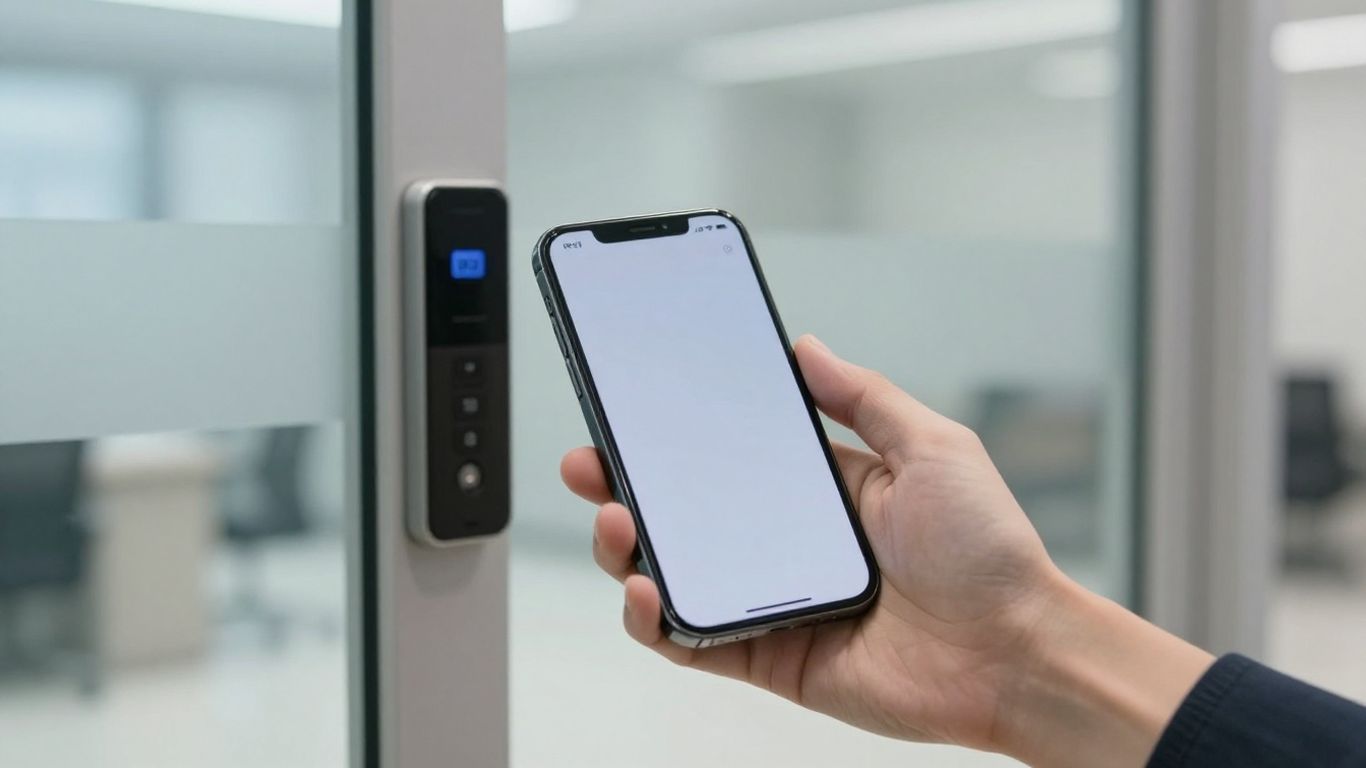
For a mobile credential, first confirm that the intended phone, account, and pass are being used. Check whether the pass was redeemed or activated as instructed and whether the phone can connect normally. The Brivo Mobile Pass guide is a suitable reference for redemption steps and related loading issues.
If the pass remains unavailable, record the phone model, operating system, app behavior, and exact error. Avoid deleting an active pass or reinstalling an app unless an authorized administrator or official instructions direct you to do so.
Start by distinguishing a forgotten password from a rejected username, locked account, or page that will not load. Use the organization’s approved recovery process and verify that you are on the official sign-in page. If recovery fails, provide the error, time of attempt, and account email to the administrator or support channel.
Never send a password in a ticket, email, chat, or phone conversation. A legitimate support process should be able to verify identity without receiving the secret itself.
If a door does not respond to an otherwise valid credential, note the door, time, credential type, and whether another authorized person can enter. Do not force the door, repeatedly present a credential, or change settings without permission. A local reader condition, a credential issue, or a broader system condition may appear identical to the user.
If there is a safety concern or a business-critical entry point is affected, follow the site’s established emergency and backup-access procedure while the technical issue is investigated.
For a phone or browser issue, confirm basic connectivity and review the relevant app permissions without granting unrelated access. Check whether the same account behaves differently on an approved device or network. Record each comparison so support can see what changed and what did not.
A comparison is useful only when it is controlled: change one condition at a time and avoid making several account or device changes at once. That preserves evidence and lowers the chance of creating a new variable.
Different parts of an access and security environment can have different support paths. The product name, user role, and affected function should all appear in the first description. This helps route the request without assuming that every issue belongs to the same technical team.
Brivo Access is described as a cloud-based access-control product. When the issue concerns administration, credentials, or access-control behavior, identify the affected organization and site rather than describing the problem only as a general outage. An administrator can then provide the relevant account context through an approved support route.
Keep local observations separate from assumptions about the cloud service. State what the user sees, which doors or people are affected, and whether other functions remain available.
Mobile credentials introduce another layer of variables, including the phone, pass activation, connectivity, and the user’s account. Describe those elements separately so the receiving team can determine whether the issue is with the credential, the device, or the account. A screenshot may help, provided it does not expose unnecessary personal or security information.
Users should follow the organization’s process for receiving or replacing a mobile credential. An administrator may need to confirm authorization before any change is made.
A request involving video, alarm, visitor management, or intrusion detection should identify the specific function and site. Do not assume that a problem with one feature explains a problem with another. Record whether the issue is continuous, intermittent, or limited to a particular user or location.
The official contact material groups access control, video, visitor management, and intrusion detection among the areas organizations may ask about. Use that description to choose a relevant support topic, then keep the case focused on the function actually affected.
Administrators can usually provide organization and site context, while end users may only be able to describe what they see. Neither role should exceed its authorization. If a request involves issuing credentials, changing access, or inspecting organizational settings, route it through the designated administrator.
A clear handoff is often faster than asking an end user to troubleshoot settings they cannot view. Include the original symptoms so the next person does not have to recreate the conversation from memory.
Support should not require you to weaken account security. Verify the channel, share only what is necessary, and use approved methods for sending screenshots or logs. This is especially important when an access problem creates pressure to accept the first offer of help.
Navigate to the official site yourself and compare the support route with the message or caller’s instructions. Confirm the domain, contact details, and case information before continuing. The Brivo Notices page can also help organizations review published security updates and statements.
If a caller cannot explain the case, insists on secrecy, or asks you to bypass normal approval, stop and verify through an independent channel. Urgency is not proof of authenticity.
Do not disclose passwords, one-time codes, recovery codes, or complete credentials in an ordinary support exchange. If identity verification is required, use the process shown in the official channel and ask what information is genuinely necessary. A support request should not become a reason to collect unrelated secrets.
The same rule applies to screenshots. Crop account data, personal information, door details, or codes that are not needed to diagnose the problem.
Be cautious when a message creates unusual pressure, promises an immediate fix, or asks you to install remote-control software. Unexpected requests for payment, passwords, or security codes are warning signs. End the interaction and contact the organization through a known official route.
Tell your internal security or IT contact if a suspicious message targeted several users. Preserving the message, sender details, and time can help with internal review.
Use the upload or case system provided by the verified support channel whenever possible. Remove information that is not relevant, and keep a private copy of what you submitted. If a file contains sensitive operational details, ask your organization’s security or IT team to approve the sharing method.
Security notices and support records should be handled according to the organization’s retention and access policies. A useful diagnostic file is still sensitive information if it reveals more than the recipient needs.
Escalation works best when it adds organized evidence rather than repeating the same request. Give the next contact the original case details, the impact, and the steps already completed. Keep the tone factual and specific, particularly when several sites or departments are involved.
Request the case or reference number and record the date, channel, and assigned contact if one is provided. Ask what the next response will contain and when it is expected. A timeline does not guarantee a resolution, but it creates a practical point for follow-up.
If the problem is affecting a critical entrance or many users, state that operational impact clearly. Avoid inflating the severity; accurate prioritization helps the right team respond.
A follow-up should summarize what changed since the last contact, which tests were completed, and whether the symptoms remain the same. Attach only the records relevant to the case. This gives the support team a clean progression instead of a long chain of disconnected messages.
If a new symptom appears, label it as new rather than blending it into the original description. That distinction can change the investigation.
If you are an end user, bring the unresolved case to the person responsible for access administration. The administrator may have additional account context, approval authority, or an established escalation relationship. Share the case number and a short impact statement so the handoff is easy to act on.
For multi-site organizations, include the affected location and whether other sites are operating normally. That comparison helps separate a local issue from a broader one.
Some problems cannot be resolved through account or app troubleshooting. A physical reader, door hardware, network path, power condition, or site configuration may require an authorized technician or onsite service. Do not open equipment or alter wiring unless the organization’s qualified personnel direct you to do so.
Describe the observable physical symptoms and any recent site work in the case. That information can help determine whether remote support is appropriate or whether an onsite assessment should be arranged.
A reliable path to help begins with an official contact route, continues with precise troubleshooting information, and stays secure throughout the exchange. Whether the issue affects one user or a larger site, clear ownership and disciplined follow-up make it easier to restore access without creating additional risk.
Use the provider’s official contact page, account portal, or an organization-approved administrator. Avoid numbers copied from unverified directories or unsolicited messages.
Prepare the organization and site name, your role, the affected user or door, the exact error, when the issue began, and the steps already attempted.
Not necessarily. A help center or internal administrator may be suitable for routine questions, while urgent or widespread access failures may justify a live support channel.
Confirm the intended phone and credential, check approved activation instructions and connectivity, then record the device details and error before contacting an administrator or support team.
No. Do not share passwords, one-time codes, or recovery codes. Use the verified identity and account-recovery process instead.
Keep the case number, follow up with a concise timeline, provide relevant records, and involve the organization’s administrator or technical owner.
Onsite service may be needed when symptoms point to hardware, wiring, power, a physical reader, or another condition that cannot be safely assessed through remote support.
Connect with us to explore our scalable solutions tailored to your unique needs and receive a personalized free quote.